24Files offers the same file and folder actions as in SharePoint Online. You can upload, download, preview, rename, move, edit and delete files, depending on the access given to the user. See the different access options below.
Always up to date and no double work
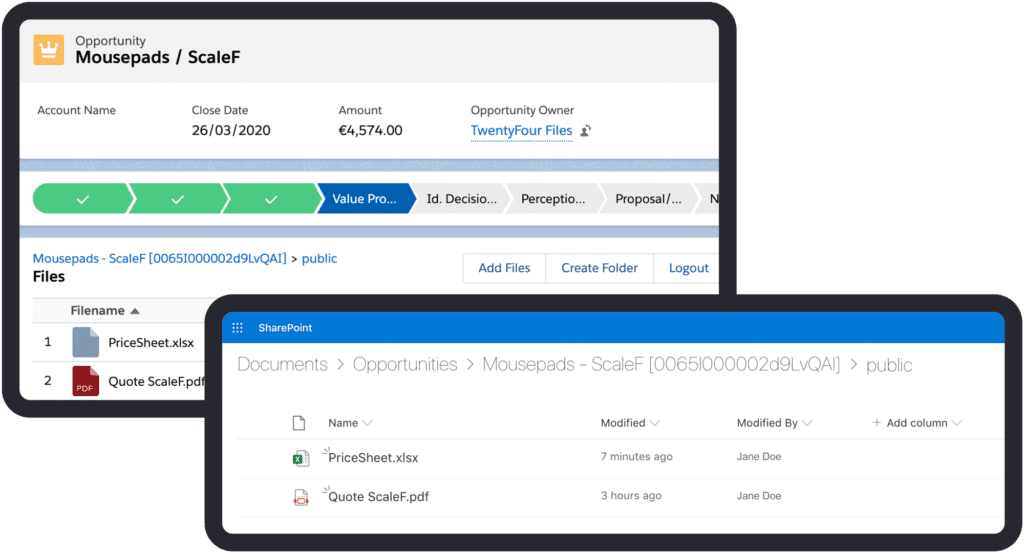
When the 24Files component gets loaded on the Object Record, a perfectly synced folder structure will be created within seconds.
Your Salesforce users are always in sync with your SharePoint Online, thanks to the bi-directional sync. Changes made in Salesforce are immediately reflected in SharePoint O365. And the other way around!
Enable community users
24Files can be used on the community (Service Cloud)
Combined with anonymous access:
End users can be restricted to only upload or download files.
They don’t need SharePoint Online credentials.
They have only access to their personal files in the shared/public folder.
Tag SharePoint O365 files in Chatter
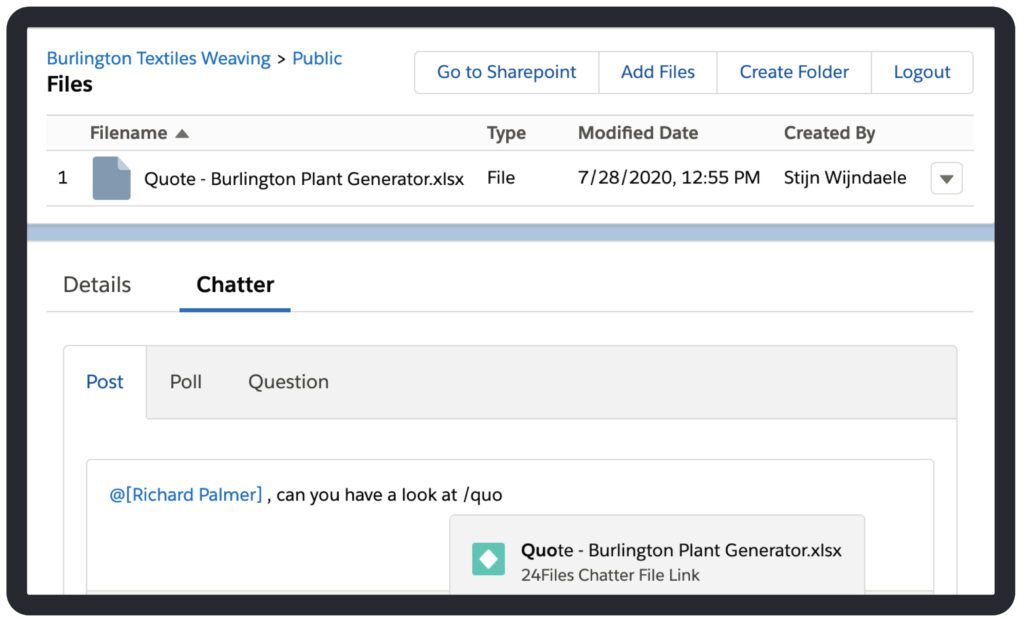
Let your users continue their daily chatting habits in Salesforce and further enhance the internal collaboration through file tagging in Chatter.
All files uploaded via Salesforce and SharePoint Online that are linked to an Object Record can be tagged in Chatter.
Go to the right folder in SharePoint Online, with one click
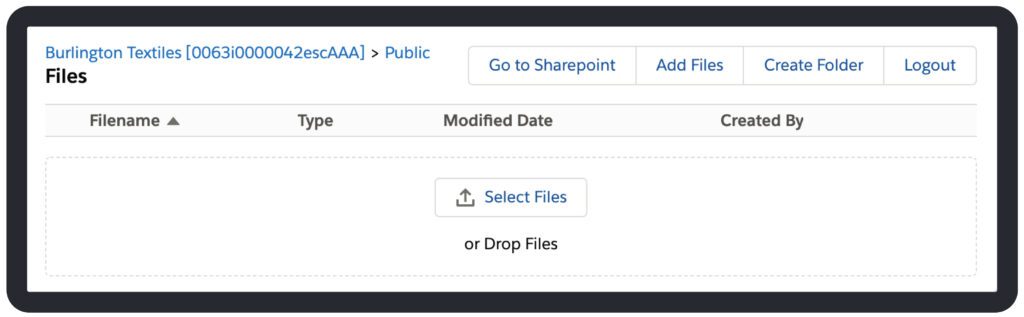
With the ‘Go to SharePoint’ button, users are one click away from being in the right place in SharePoint Online.
System Administrator Features
Choose the right access mode for the right use case
Authenticated access
Let users upload, download, rename, move, preview, create public link, edit and delete SharePoint Online files and folders with 24Files.
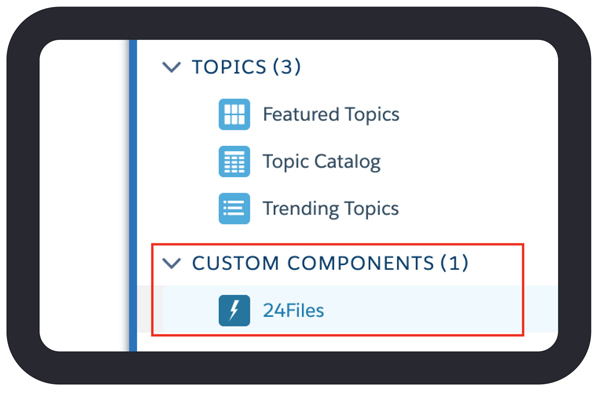
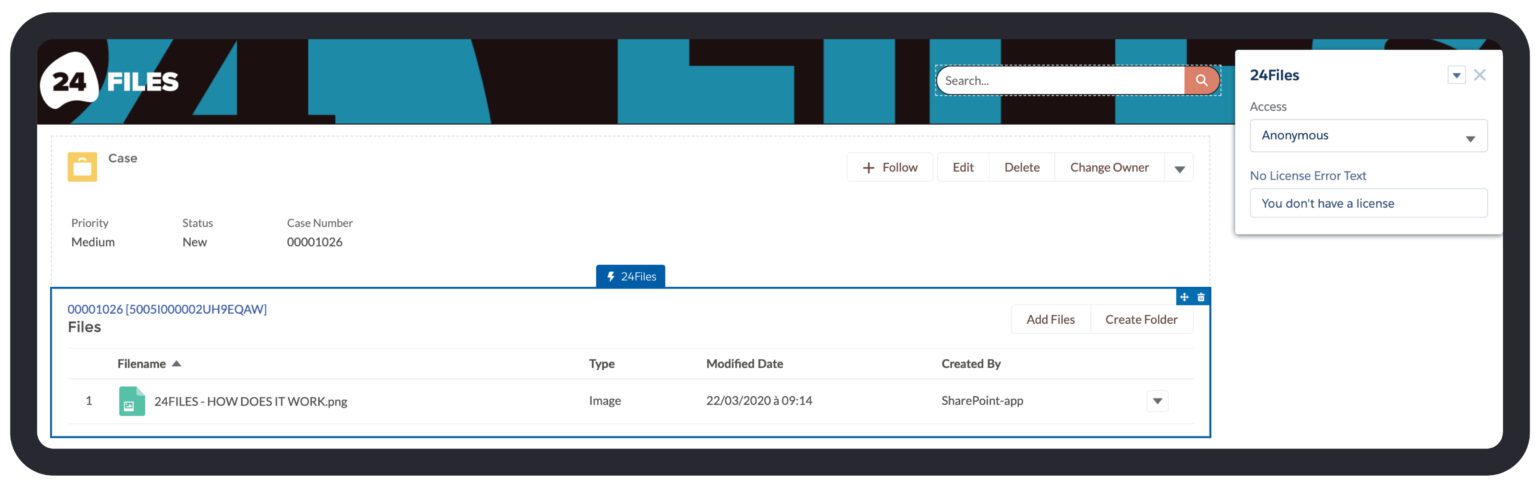
To use authenticated access, you’ll need your SharePoint Online credentials. To configure ‘Authenticated Access’, go to the Lightning App Builder, click on the component and select from the dropdown ‘Authenticated’.
Anonymous access
Limit user access to upload, download and preview of SharePoint Online files and folders with 24Files. Extend the anonymous access with delete, move and rename actions.
No credentials to your SharePoint Online account are needed. It’s perfectly suited to let customers upload files via the community.
Configure object specific SharePoint Online sites
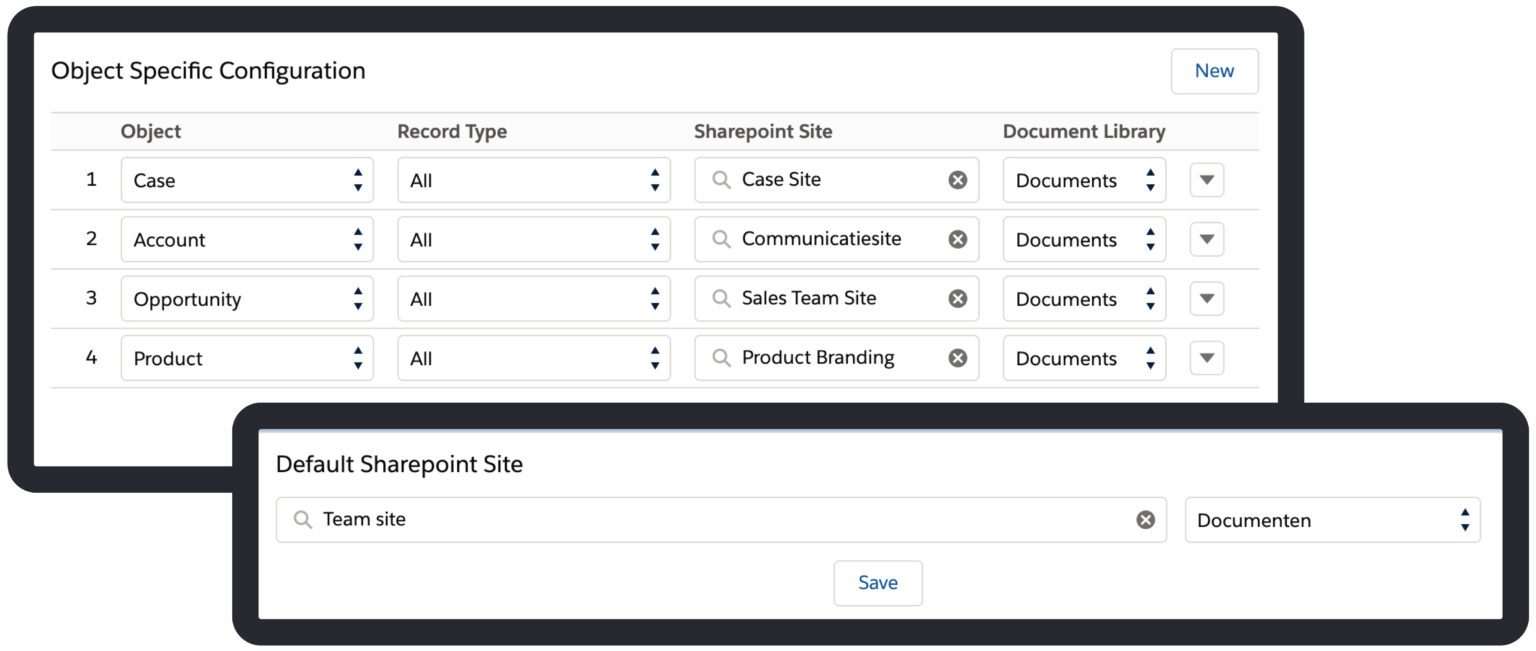
Assign a specific SharePoint Online site to a specific object or a record type.
First, choose a SharePoint Online site and the corresponding document library that will be used as a default for objects without a specific site.
Optionally, configure object specific SharePoint Sites and Document Libraries.
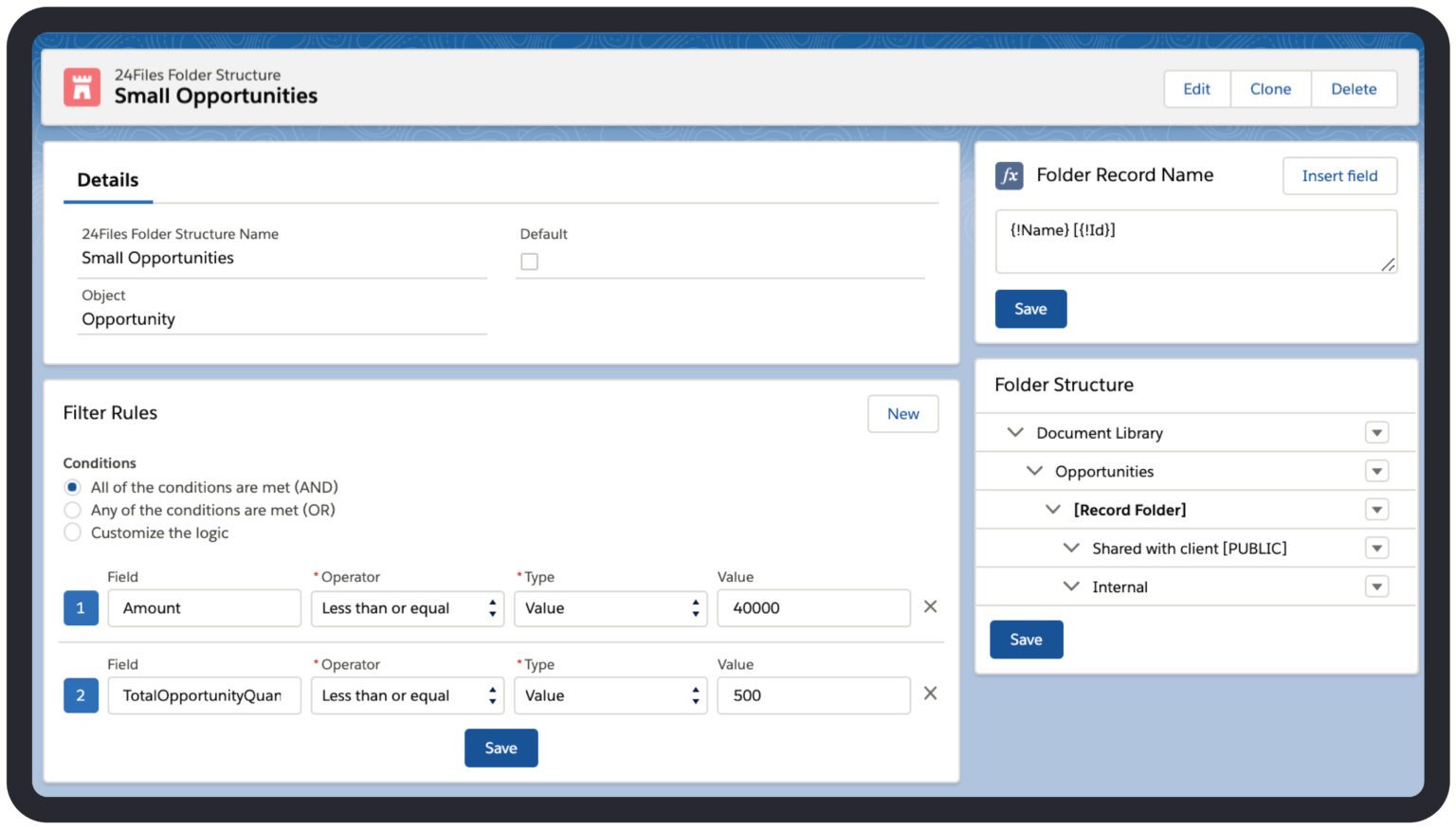
Configure your own folder structure
Customise everything to your needs by creating your own folder structure in the 24Files manager. All based upon your rules.
Use already existing folders in SharePoint Online or let 24Files create them for you.
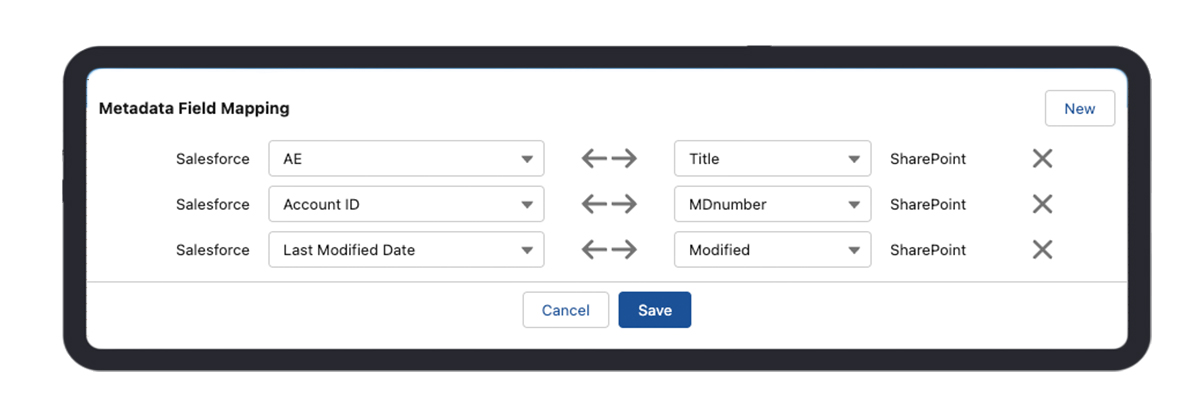
Sync your Metadata
Sync your metadata between Salesforce and Sharepoint with our easy to use metadata mapper.