How 24Files Works: Salesforce SharePoint Integration
For your users & as a system administrator
User Features
Access & Manage all files and folders
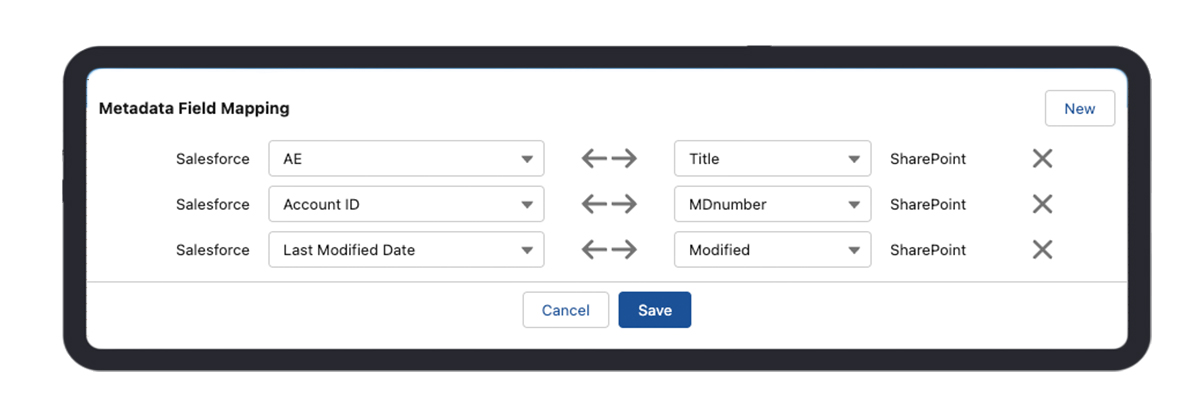
Our Salesforce Sharepoint integration offers the same file and folder actions as in SharePoint Online. You can upload, download, preview, edit, rename, move, edit metadata and delete files and create, delete, move and rename folders.
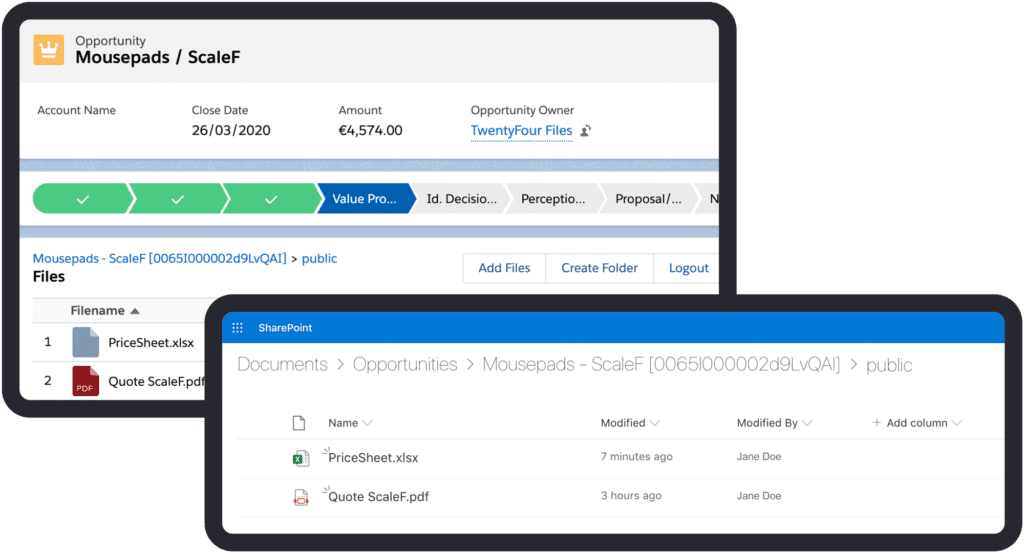
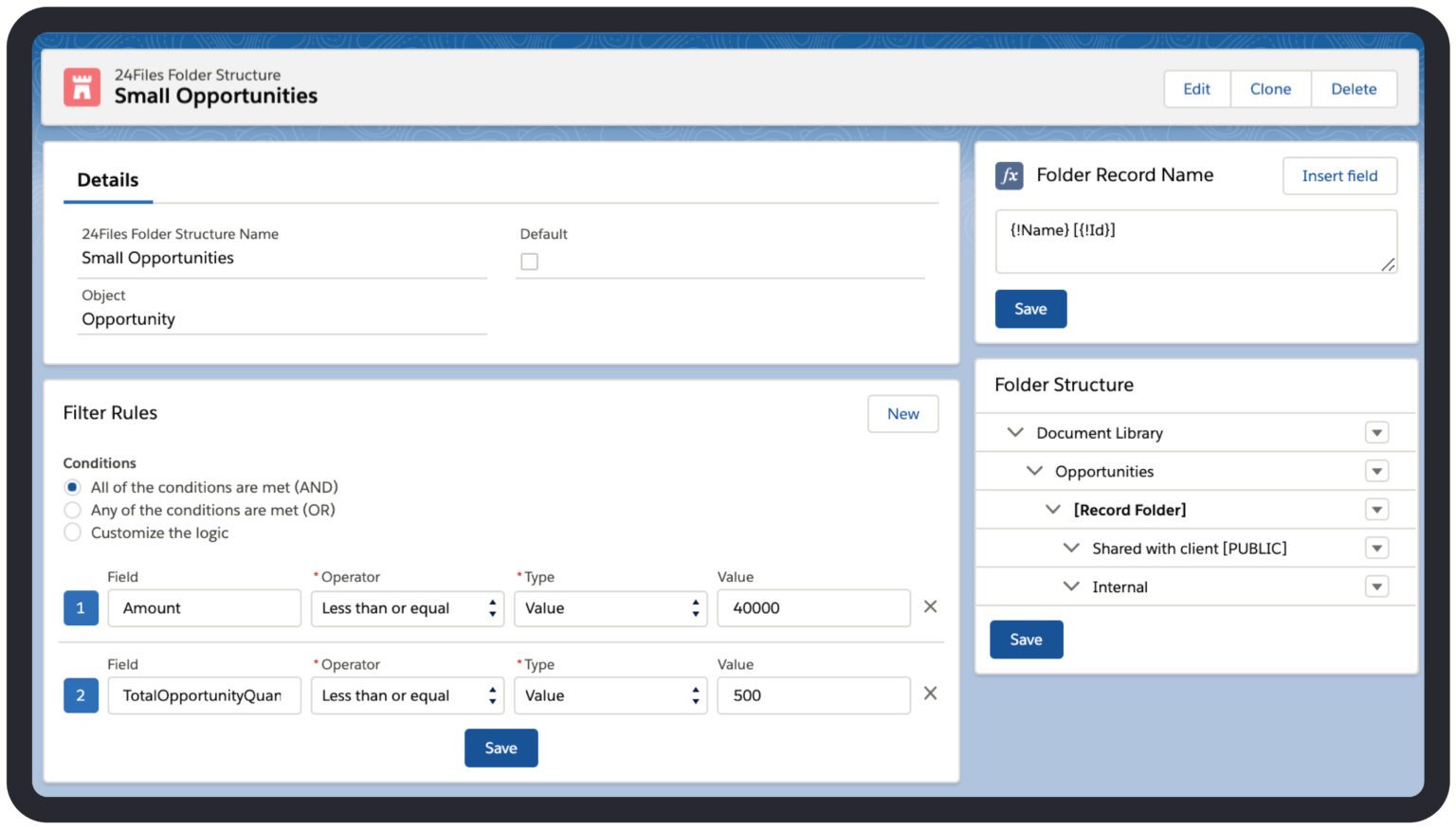
When the 24Files component gets loaded on the Object Record, a perfectly synced folder structure will be created within seconds.
24Files always provides the latest view, thanks to the bi-directional sync between Salesforce and SharePoint Online. Changes made in Salesforce are immediately reflected in SharePoint O365. And the other way around!
Enable community users
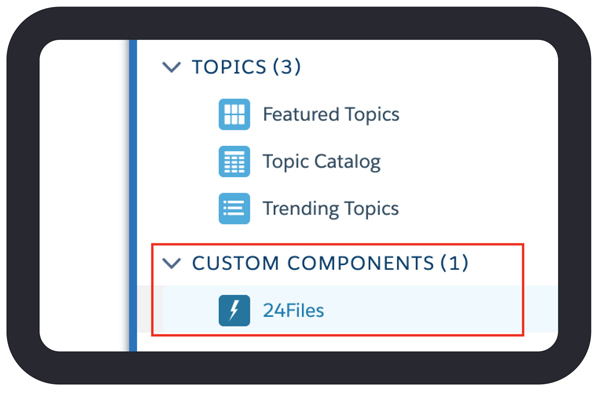
24Files can be used on Experience Cloud
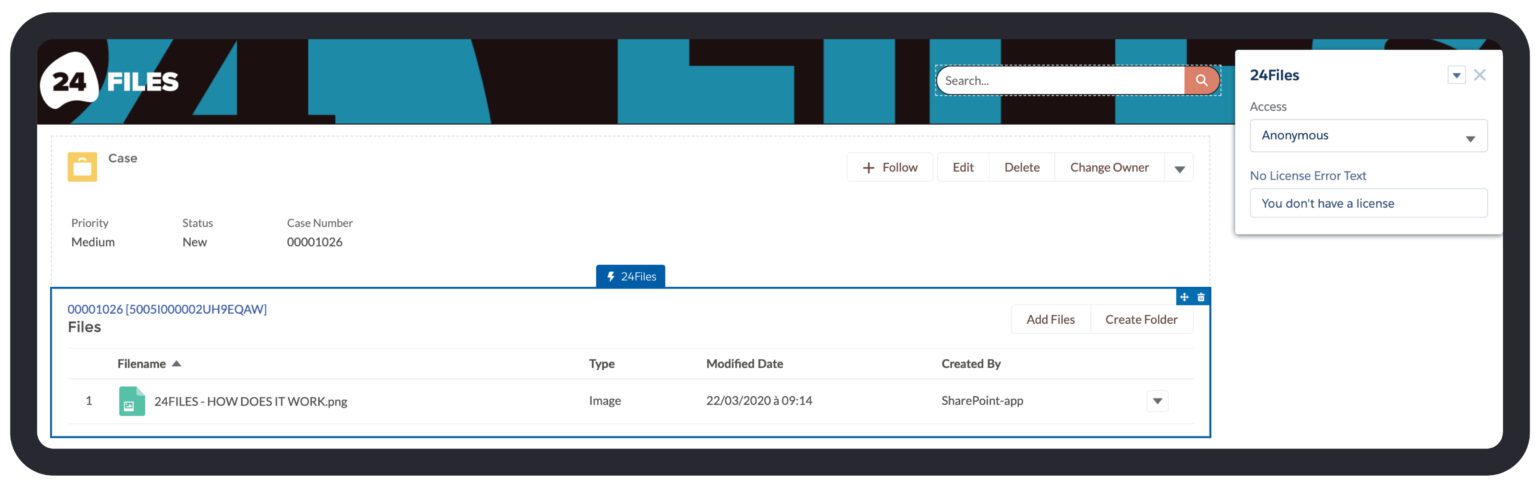
Combined with anonymous access:
Experience Cloud actions can be restricted to upload/download of files only.
Experience Cloud users do not need a SharePoint account.
Experience Cloud users have only access to their personal files in a specific folder.
Automatically upload from Salesforce storage
Configure 24Files to automatically transfer files uploaded to Salesforce storage to SharePoint Online, e.g. files generated by 3rth party apps in Salesforce. Enable this also for email attachments stored via email-to-case. Save on storage costs.
Go to the right folder in SharePoint Online, with one click
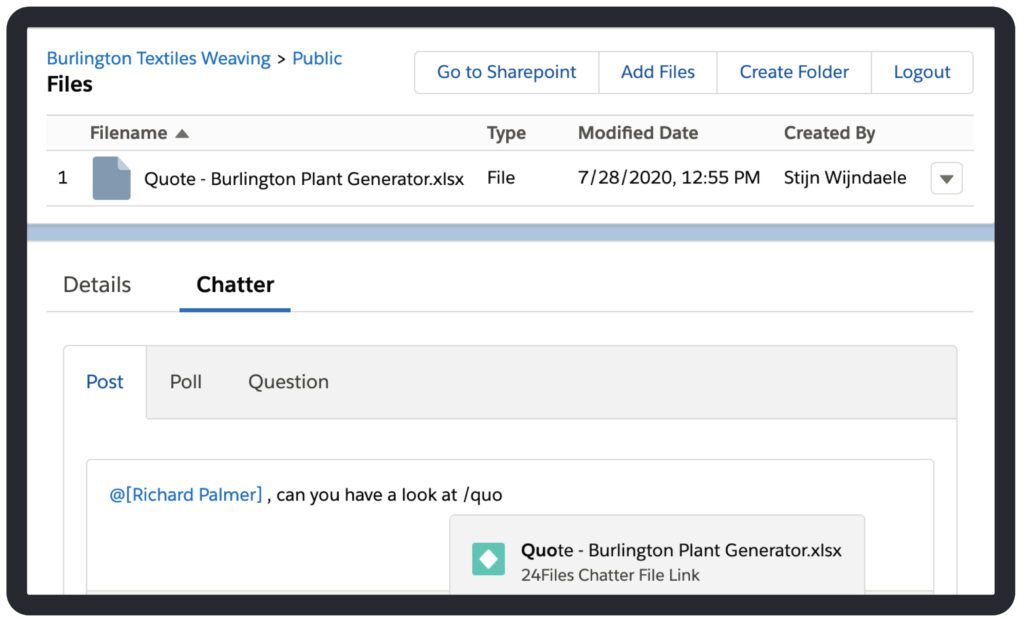
With the ‘Go to SharePoint’ button, users are one click away from being in the right place in SharePoint Online.
System Administrator Features
Select the right access mode for the right use case
Authenticated access
Let users upload, download, rename, move, preview, create public links, edit and delete SharePoint Online files and folders with 24Files. Enable/Disable any file/folder action.
To use authenticated access, your users need a SharePoint Online account.
Anonymous access
Limit user access to upload, download and preview of SharePoint Online files and folders with 24Files. Extend the anonymous access with delete, move and rename actions.
Anonymous Access uses a shared service account and individual users do not need SharePoint Online credentials. It’s perfectly suited to let customers upload files via Experience cloud.
Multi SharePoint-site support
Assign a specific SharePoint Online site to a specific object, record type or record.
First, choose a SharePoint Online site and the corresponding document library that will be used as a default for objects without a specific site.
Additionally, configure specific SharePoint Sites and Document Libraries at the object, record type or even at the individual record level. This solution provides utmost flexibility for companies organized around multiple SharePoint sites.